Permissions System
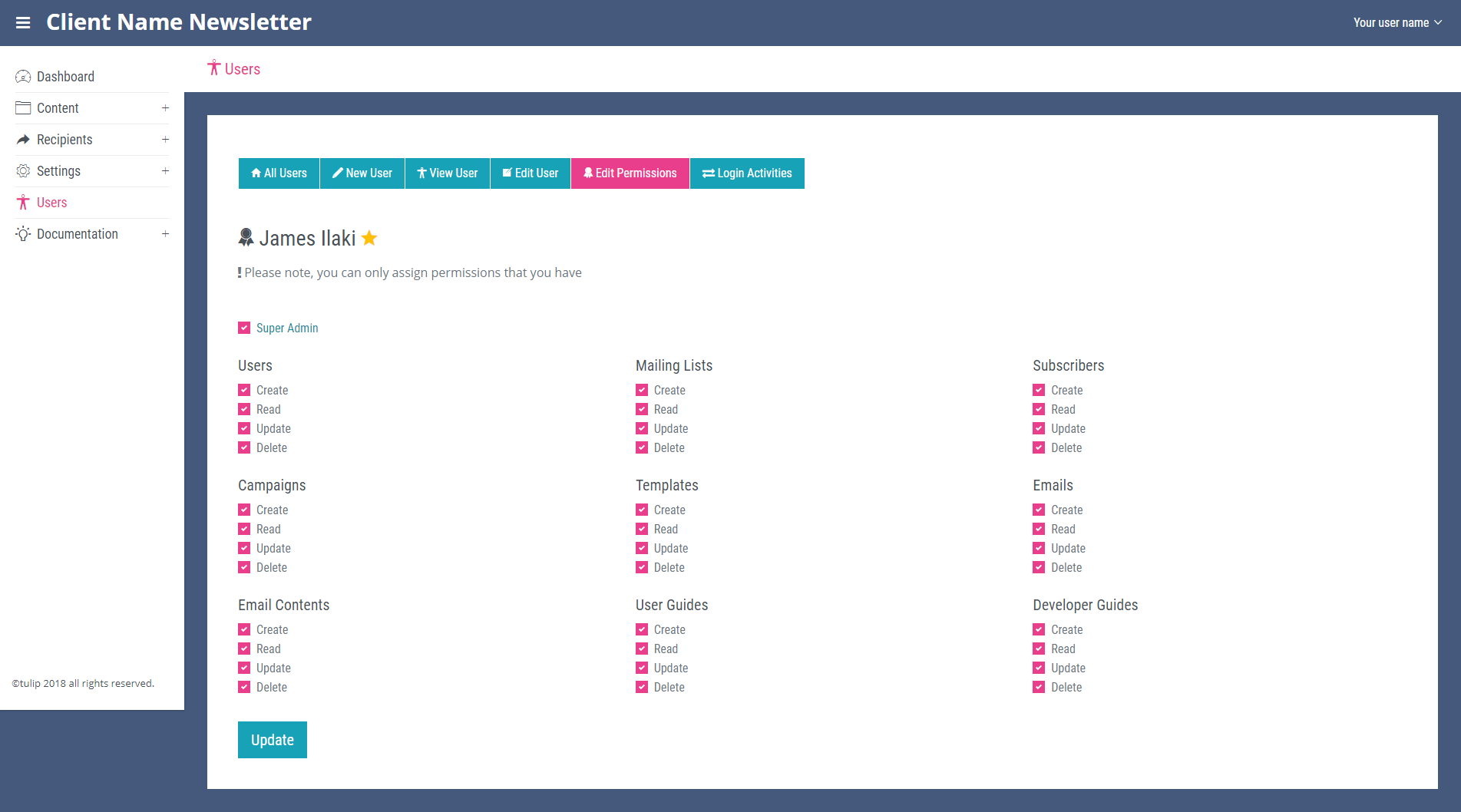
User permissions are what determines what the user is allowed to read, update, create and delete within the system. To view and edit user permissions, navigate to the ‘All Users’ page. Locate the user you wish to edit the permissions for and click the small person icon at the end of its row. This will open the ‘View User’ page for the selected user. At the top of this page you will see the ‘Edit Permissions’ link. On the ‘Edit Permissions’ page the capabilities of the user are indicated by ticked checkboxes. The first check box; labelled ‘Super Admin’ will check all of the boxes below, as super admin is the highest user privalage and is able to controll the content for the entire system.
The edit permissions page contains nine sections showing the users privileges for reading, creating, updating and deleting new content in each of the main navbar dropdowns; users, mailing lists, subscribers, campaigns, templates, emails, email contents, user guides and developer guides. These privileges can be edited by checking the corresponding check boxes. Note ‘read’ is the most basic user privilege and a user can not have any other privileges in a section if they don’t have the ability to read items within that section. If a user has no permissions granted for a section it will not appear in their admin sidebar.