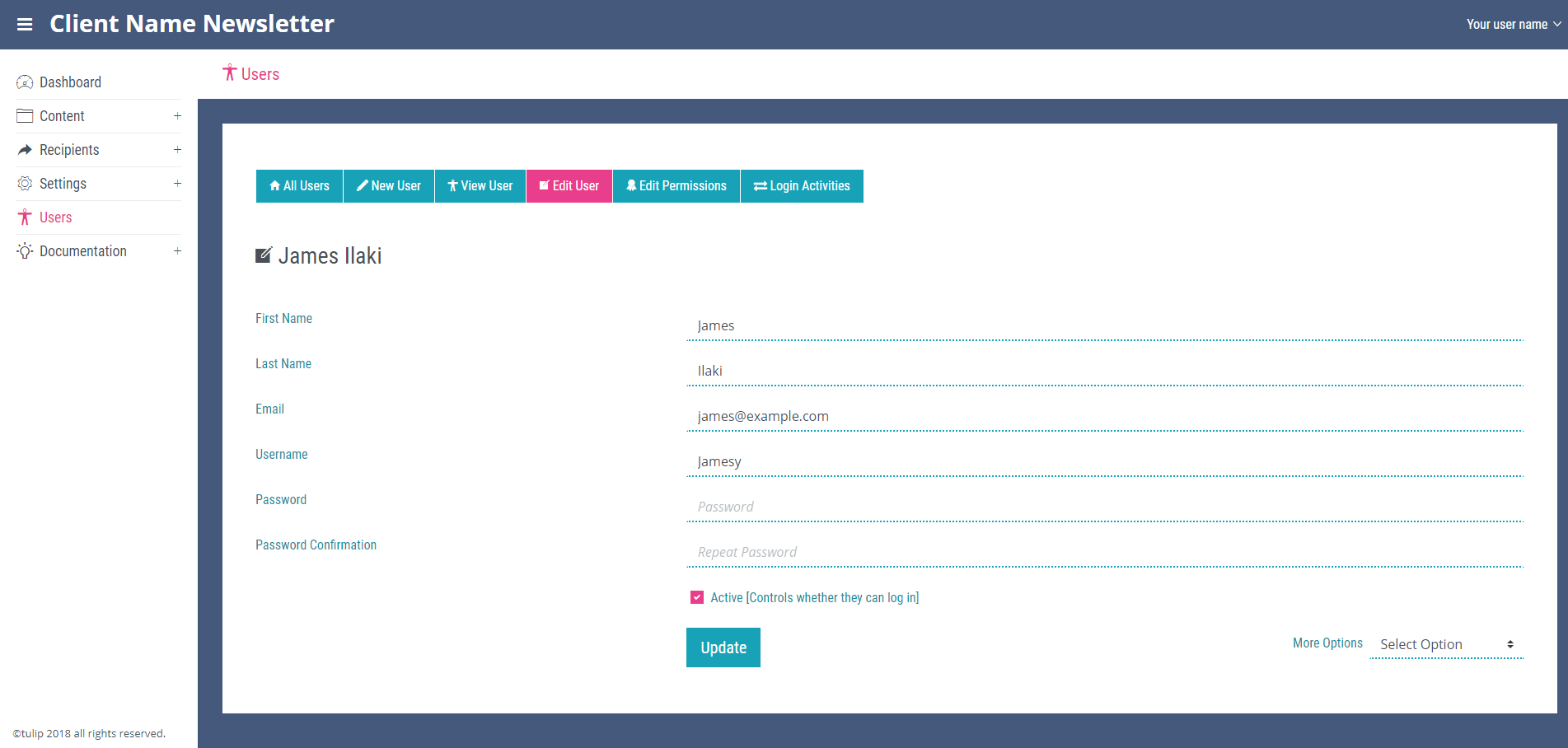
Edit Users
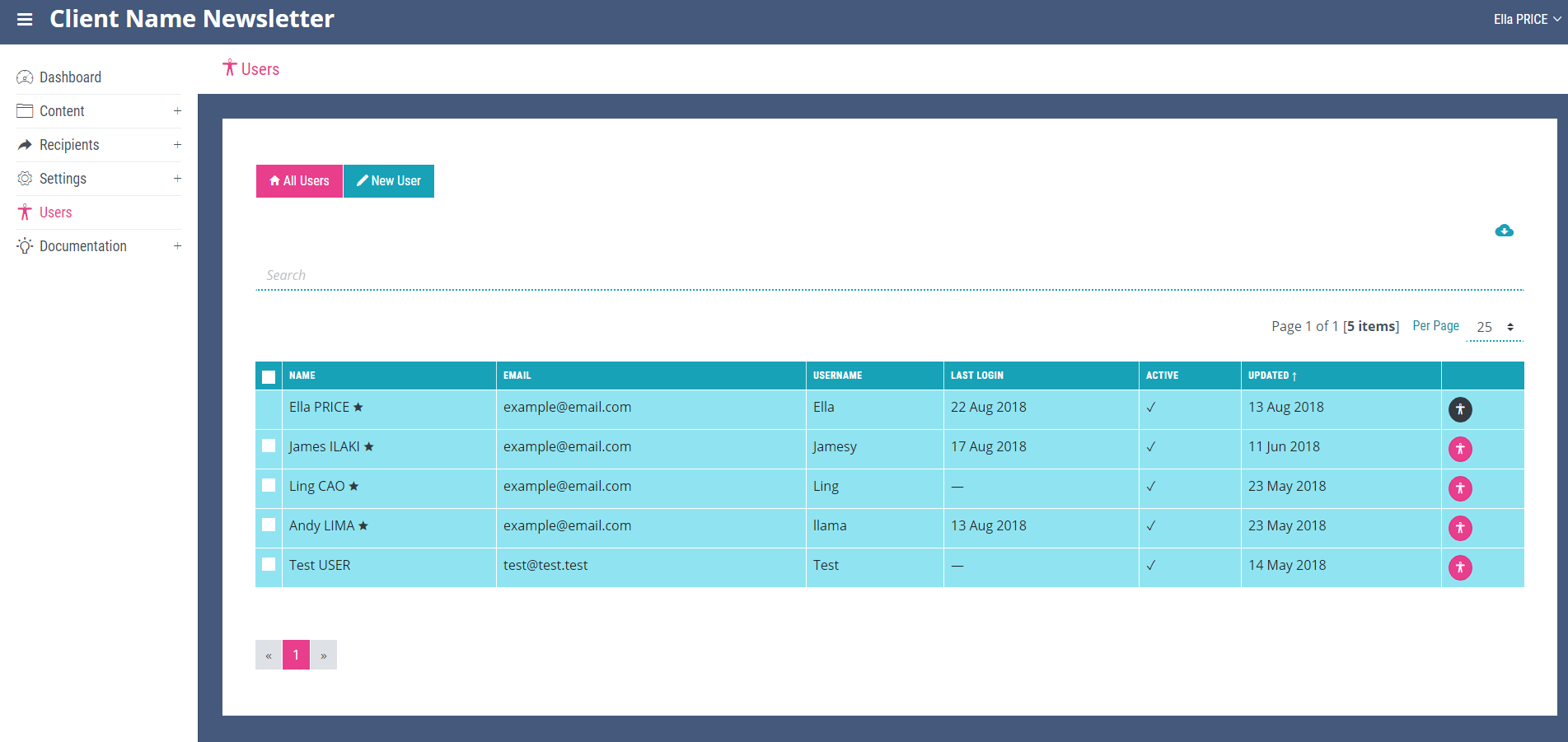
To edit a user, navigate to the ‘All Users’ page. Locate the user you wish to edit and click the small person icon at the end of its row.
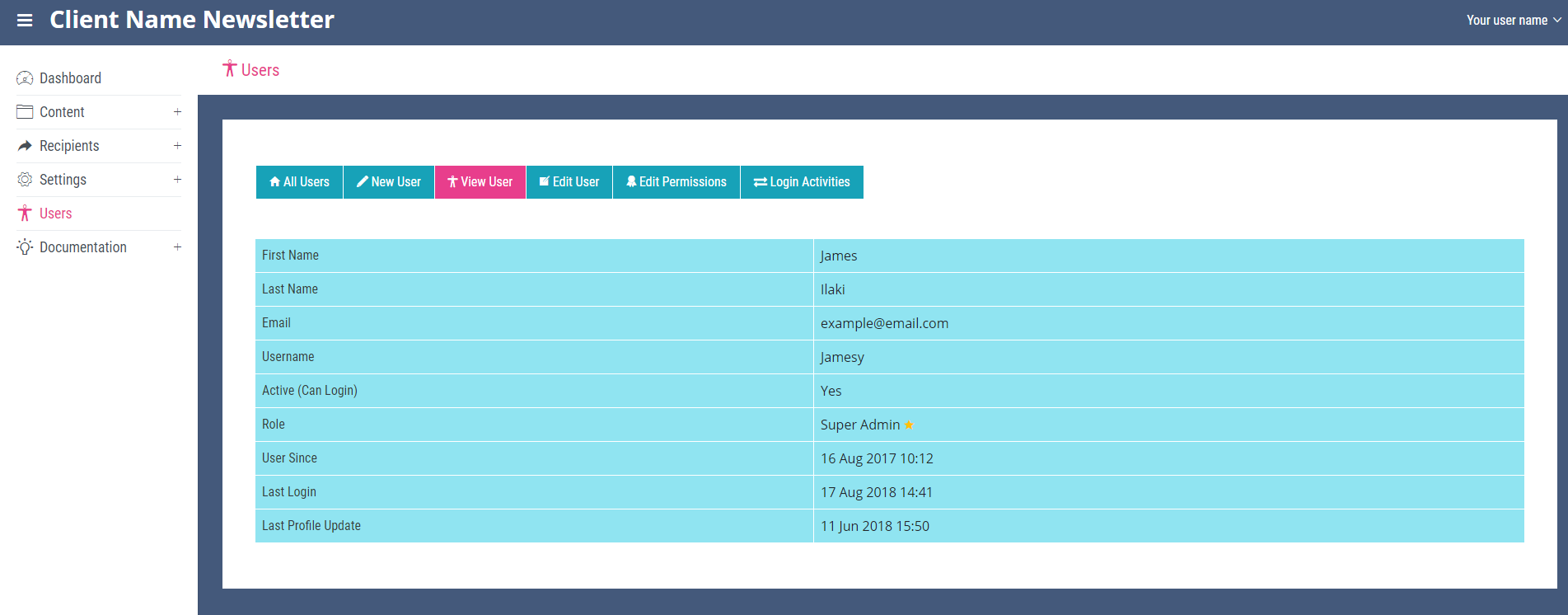
This will open the ‘View User’ page for the selected user. At the top of this page you will see the ‘Edit User’ link.
On the ‘Edit User’ page the name, username, email and password can be updated. The more options dropdown at the bottom of the page can be used to delete the user if needed. Once you are happy with the changes click the update button at the bottom of the page.
Activating New Users
If you are a system admin activating a new user who has registered themselves, navigate to the ‘Edit User’ page and ensure the active check box is ticked as the default for new users is inactive. Once you have checked this box and updated the user the new user will be able to login.