New Emails
To add a new email, click the ‘New Email’ link on any page within the ‘Emails’ section. In the top right of this page is the ‘Toggle Sender Details’ link, when clicked the field is automatically populated by the ‘Emails Settings’ section will become visible and are editable if necessary. For more information on the ‘Email Settings’ section please click here. If you wish to send to a small number of selected subscribers use the recipient subscriber’s dropdown to select these. If you wish to send to a mailing list select one from the recipient mailing lists dropdown. Add a subject and select a campaign for the email to belong to (subject, campaign and content are all required fields to save the email as a draft). The next required field on the page is the content section this is the TinyMCE text editor which is similar to other text editors like Microsoft word. For information on using the TinyMCE editor please see the Using the TinyMCE Editor for Emails chapter.
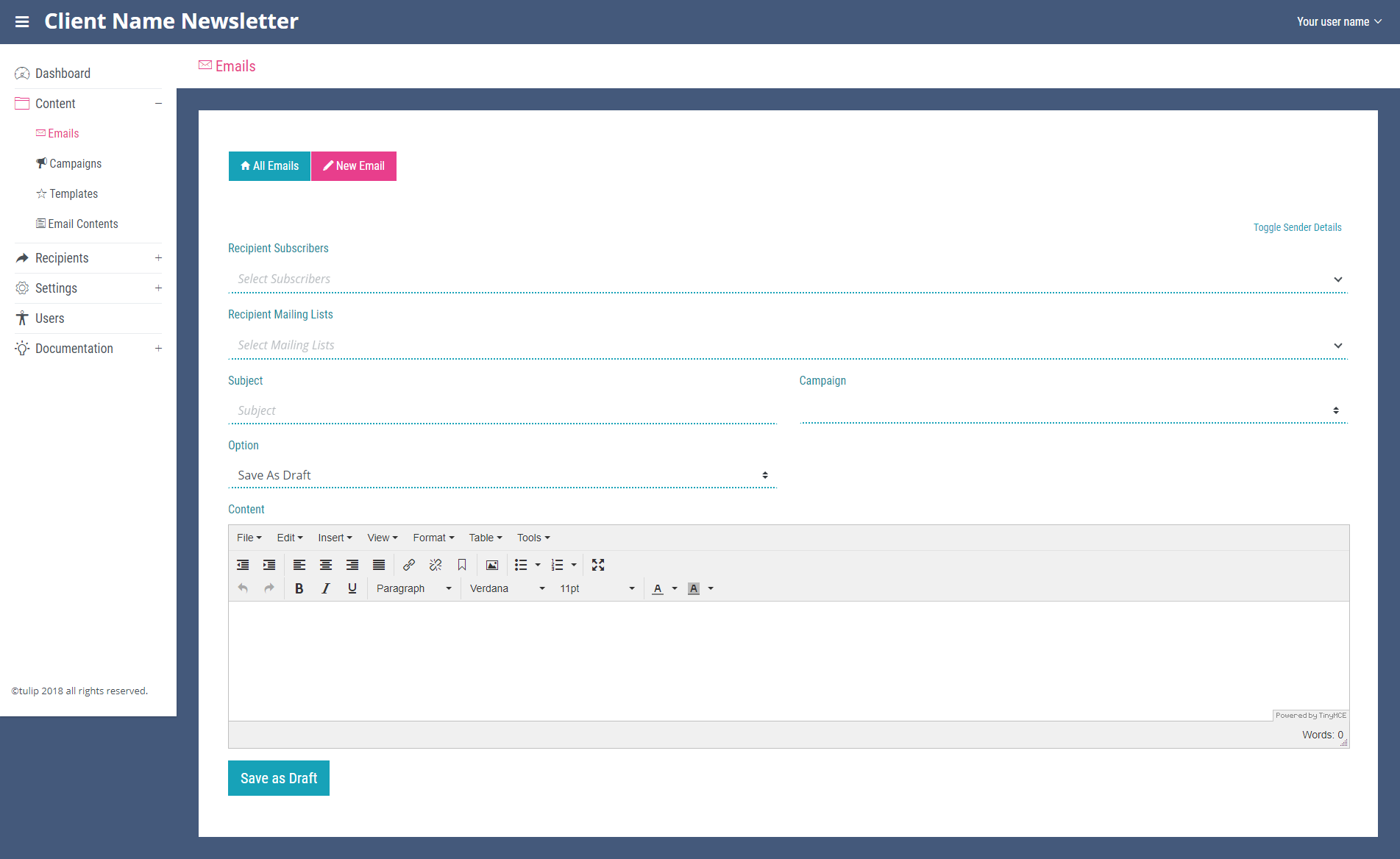
Once you have used these tools to create an email click save at the bottom of the page. Note You will now see the email displayed on the ‘All Emails’ page.