New Subscribers
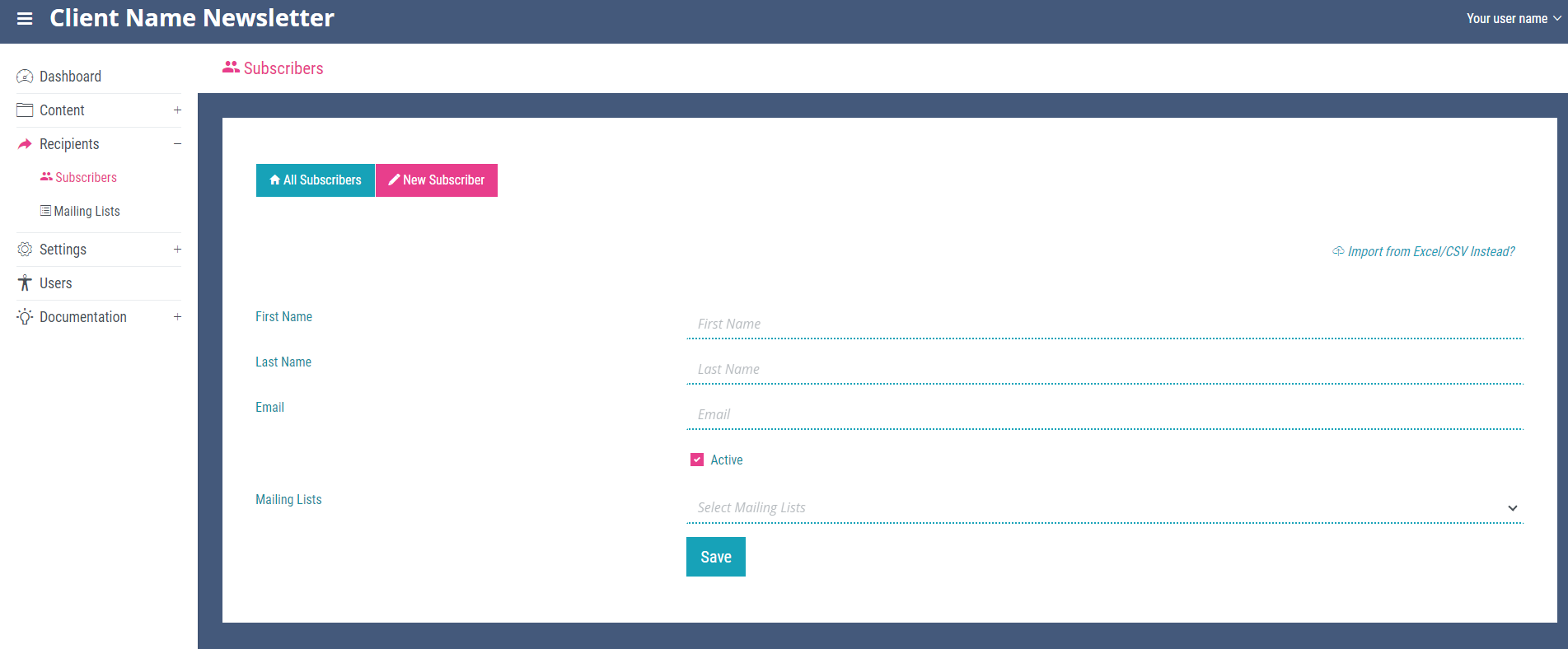
To add a new subscriber, click the ‘New Subscriber’ link on any page within the ‘Subscribers’ section.
Adding a Single Subscriber
To add a single subscriber, enter the subscriber details in the fields provided, select active if you wish emails from the selected mailing list to be sent to the subscriber and select the mailing lists the new contact will be subscribed to. Save this result and it will become visible in the ‘All Subscribers’ page.
Adding Multiple Subscribers
To import multiple subscribers from an Excel or CSV file, select the ‘import from Excel/CSV’ link at the top right of the ‘New Subscriber’ page. Ensure that the spreadsheet to be imported contains three columns, these columns must be named first_name, last_name and email. If they are not labelled exactly as described the contents of the file will not be imported. The ‘import from Excel/CSV’ link will open a file explorer window where you can select the file you wish to upload.
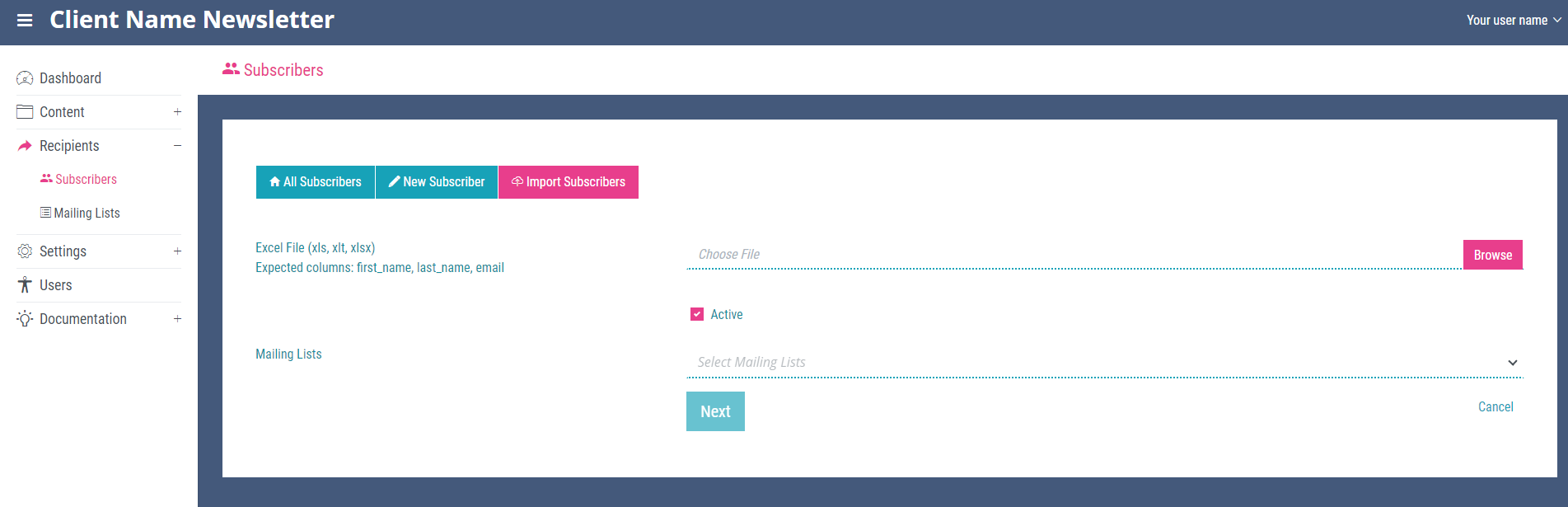
Once the correct file has been selected for upload, ensure the active check box is checked (if you wish the new subscribers to receive emails) and select the mailing lists you wish to add the new subscribers to. Then click next. This will lead you to a page declaring the success or failure to import each row of the spreadsheet. If all rows were error free a notification will be show informing how many rows are contained it the file. From the ‘select next step’ dropdown select ‘Save Good Rows(), Attach Existing Rows ()’ and then click finish to import the file. Cancel import would be selected from the drop down if required.
If the system detects any errors with the email addresses or if your spreadsheet contains some subscribers with the same email addresses as those already contained within the system (including any subscribers in deleted subscribers), each row containing an error or duplicate will throw an error reading: Rows with email addresses that are taken: number, Please check the following row numbers for taken email addresses: row number in spreadsheet. When this occurs in the ‘next step’ drop down select Save Good Rows(), Attach Existing Rows () and click finish. This means you do not have to remove subscribers already in the system from your upload spreadsheet as the system will ignore any rows with duplicate email addresses.