All Emails
Contents of the All Emails Page
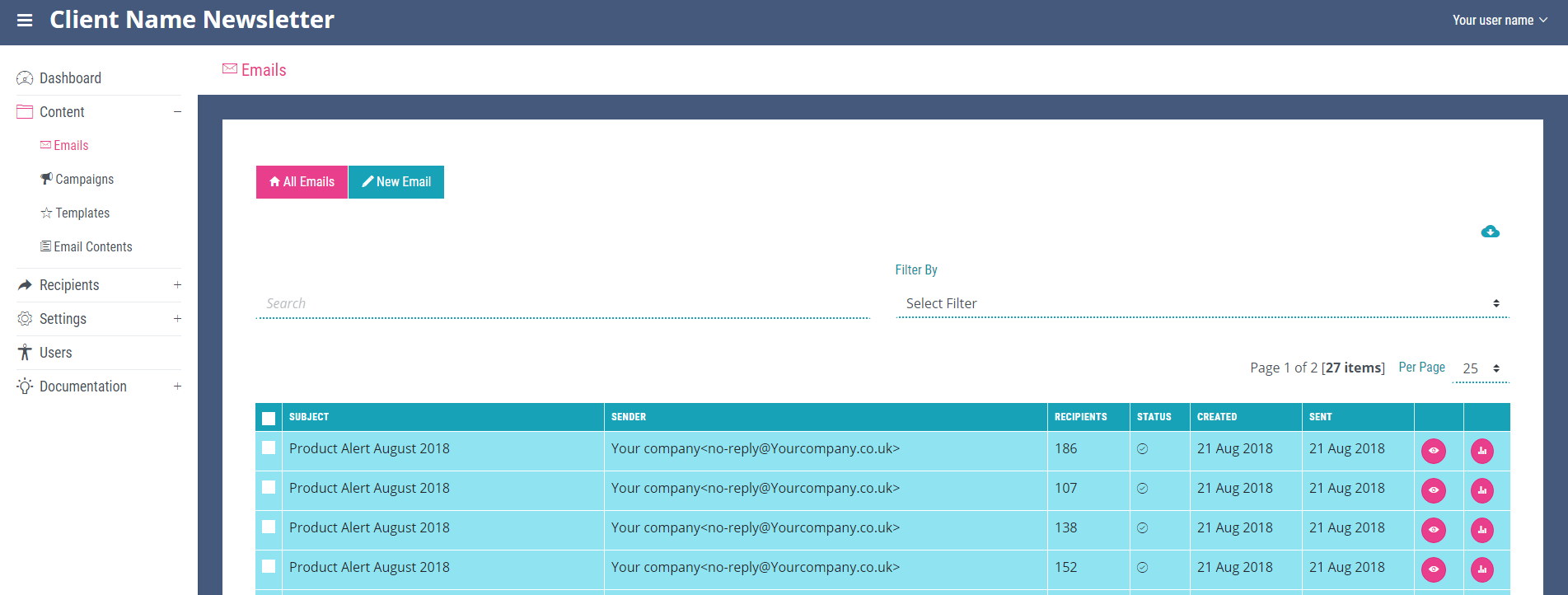
The ‘All Emails’ page is the main page of the ‘Emails’ section and displays all the emails in the system in a table containing the subject, sender, number of recipients, their delivery status, the date they were created, when they were sent, the eye icon which is the link to the ‘View Email’ details page and the bar chart icon which is a link to the email stats section.
Please see the Additional Functionalities chapter for more details on stats. All pages within the ‘Emails’ section contain a link to create new emails.
The View Email Page
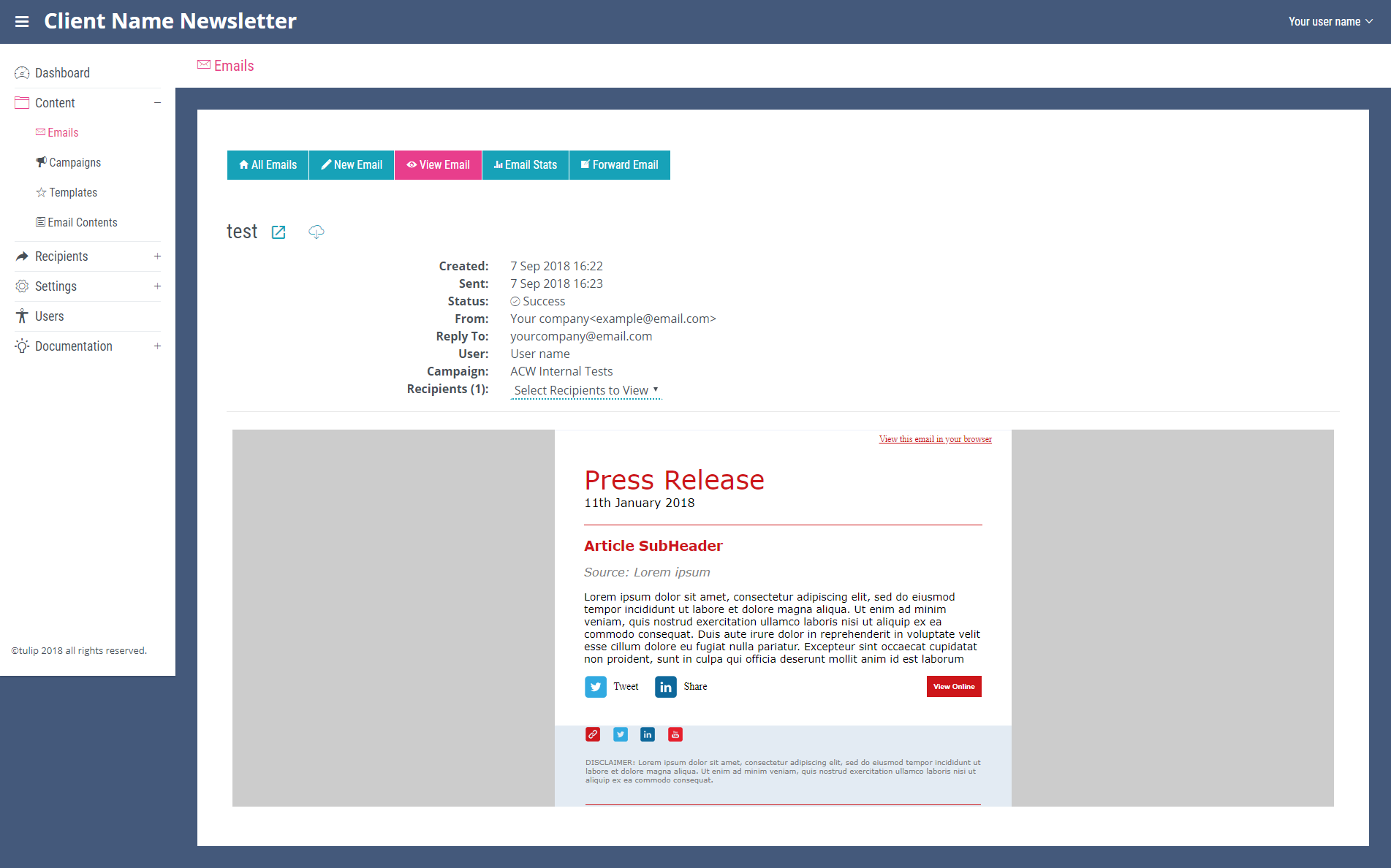
More details about the email can be seen on the ‘View Email’ page which also contains the link to the ‘Edit Email’ page. On this ‘Edit Email’ page further details about the email can be seen such as the success or failure of sending the email and who the recipients were. The two blue icons following the email title enable the user to view the email in a browser and to download the email as a PDF.
Exporting the Contents of the Page
Clicking the small cloud icon located in the top right-hand corner of the ‘All Emails’ page will export all of the items on the page as an Excel spread sheet. The icon will open a file explorer window allowing you to rename and then save the exported file.

Searching All Emails
The search bar at the top of the page can be used to search the emails stored in the system. Enter a search term and click enter to find a specific email. The emails contained on this page can also be filtered by either campaign or the user who initially created them using the ‘Filter By’ dropdown.
View
The number of items displayed on each page can be altered with the per page drop down located on the right of the page next to the page number and total number of results.