Sparkpost Setup
1. Create a sub-account
Click on the top right "Create Subaccount" button,
- enter the name of the sub account,
- the key name (should be the same as the name of the sub account)
- API permission - select All
* Once the sub-account is created, the API key will be showed once on the screen, you need to save the key somewhere for future use. Otherwise, you need to generate the API key again.
2. Create a sending domain
Select "sending domains" under the setting menu on the left hand side, click on the "add domain" button on the top right.
- enter the domain name
- Subaccount Assignment, select "Assign to Subaccount"
3. Create a Tracking Domain
Select "tracking domains" under the setting menu on the left hand side, click on the "add domain" button on the top right.
Enter the domain name, e.g email.newsletter.tradhireandsales.co.uk
Select sub-account from the dropdown, e.g. TRAD Hire & Sales
Add DNS record for Tracking Domain
| Hostname | Type | Value |
| email.newsletter.tradscaffolding.com | CNAME | spgo.io |
4. Verify sending domain
There are two ways to verify the sending domain
4.1. Via add TXT record
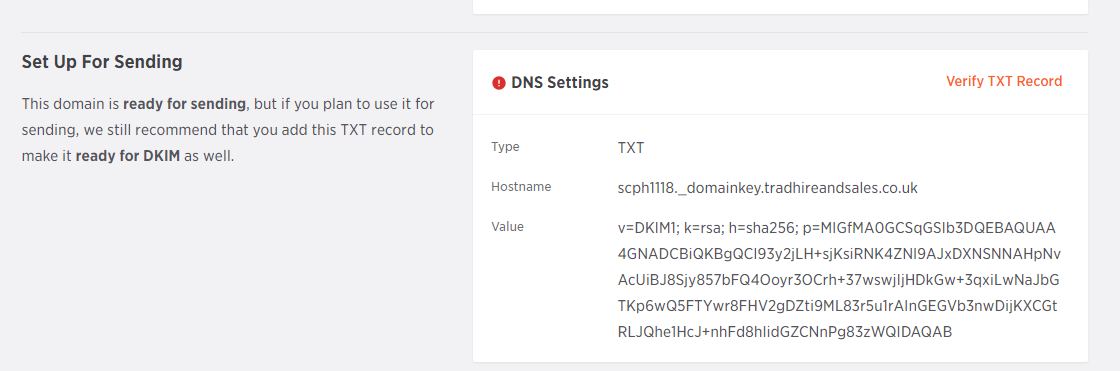
e.g if we need to verify the sending domain for tradhireandsales.co.uk. The following record need to be added to the DNS record.
| Hostname | Type | Value |
| scph1018._domainkey.tradhireandsales.co.uk | TXT | v=DKIM1; k=rsa; h=sha256; p=MIGfMA0GCSqGSIb3DQEBAQUAA4GNADCBiQKBgQCwimA1jLqhPT6ij1p8ga7svGEKBUA/JGMu2E8PXaPMocdVerQqsBURVillg90S3EdswBrH6Dm66XDmSBP32/Wpeha9MAcu8p3VlWY57gxWdzt+HhTAYkTH40mElYEGk/+skB1tW6JZK49EL7VrBX2xOrwIZw6sLBiCN4DQP7eVRwIDAQAB |
Once the recorded has been added, click on the "Verify TXT Record" at the "Set Up For Sending" section to verify the DNS settings.
For full details please visit this link.
4.2 Via email verfication
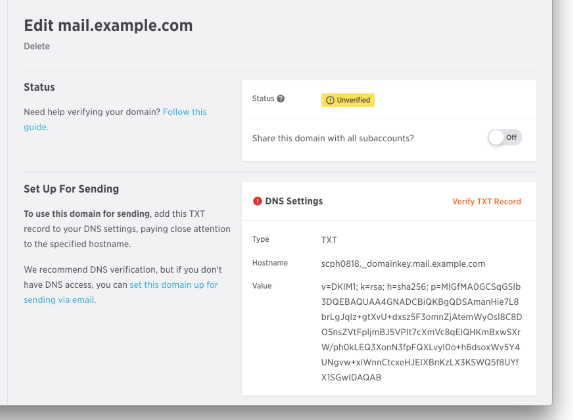
If you don't have access of the DNS record, you can alernatively send a verfication email to the email address of that domain to verify the ownership. Click on the link "set this domain up for sending via email". Once you received email, you can select on the verification link to add the sending domain verified.
Select a Tracking Domain, select the corrpsonding tracking domain in the dropdown. (e.g. email.newsletter.tradhireandsales.co.uk)
5. Set up for Bounce
Go back to "Sending Domains" section, Click on "Add a Domain"
- Add a name of the bounce with this following format "bounce.domainname"
- Subaccount Assignment, select "Assign to Subaccount"
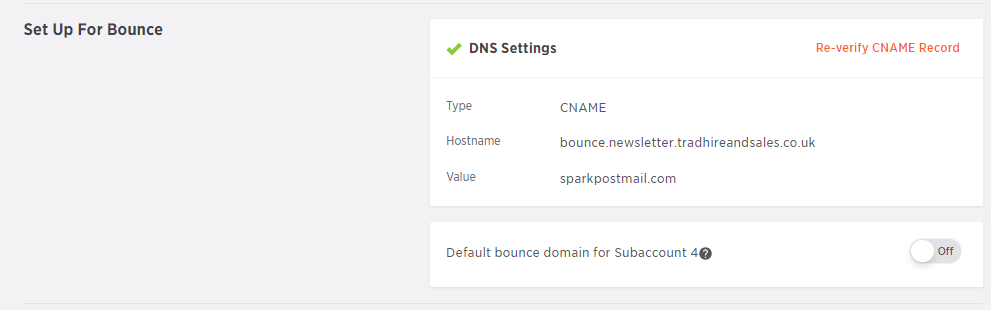
There is the another recorded need to be added to the DNS setting,
| Hostname | Type | Value |
| bounce.newsletter.tradhireandsales.co.uk | CNAME | sparkpostmail.com |
* This verification step can only done via DNS record
Select a "Tracking Domains", select the corrpsonding tracking domain in the dropdown. (e.g. email.newsletter.tradhireandsales.co.uk)
Once both sending domain and bounce are verified you have completed the spartkpost setting.